Connect and Onboard Vehicles in Ekko Platform
This article explains how to connect and onboard a vehicle using the Munic platform. You will learn the necessary steps to successfully register and configure a new vehicle for fleet management.
Go to fleet.munic.io
01
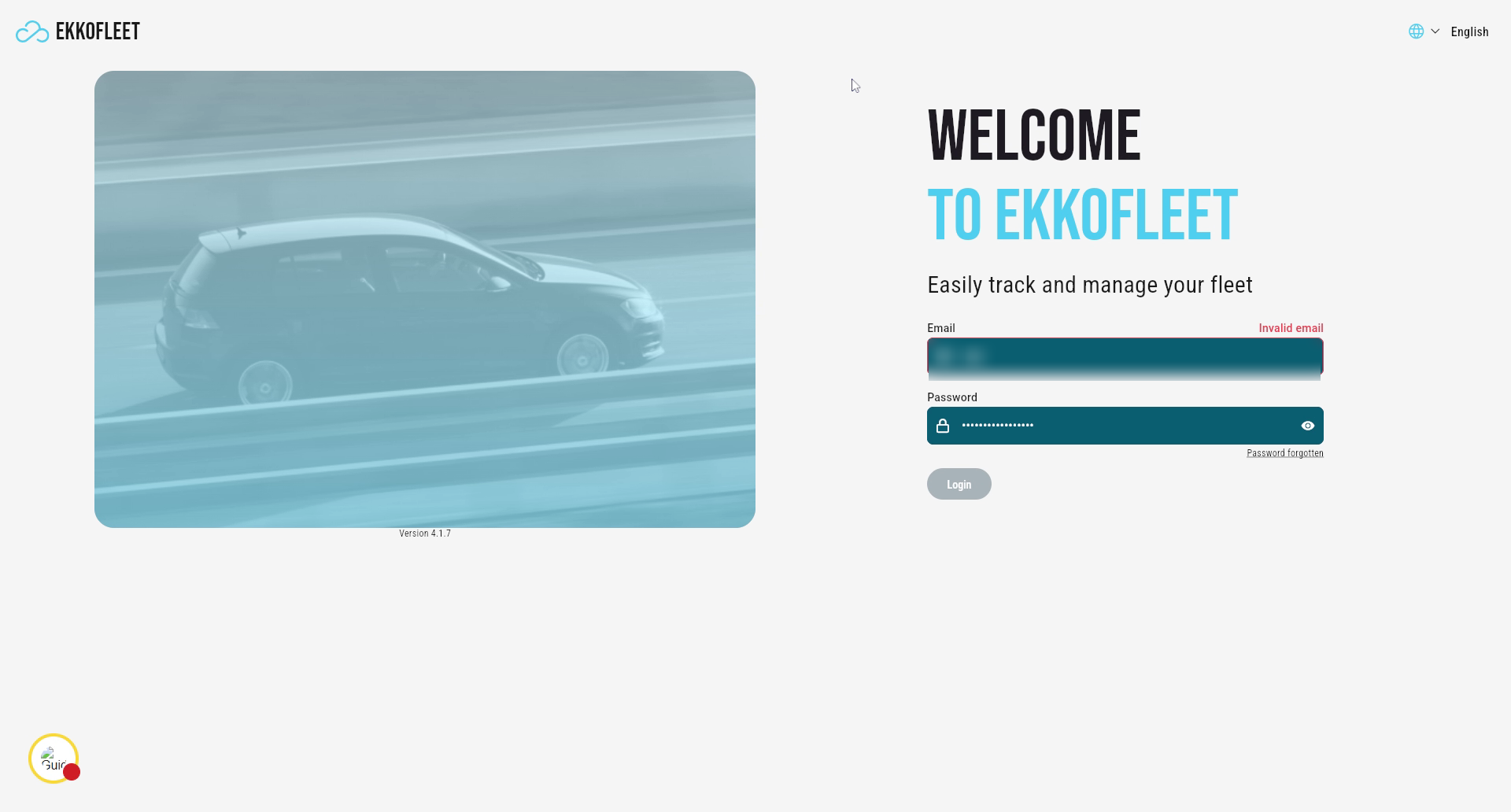
Enter Your Email Address
Enter your email address to begin the login process for the Munic platform.
02
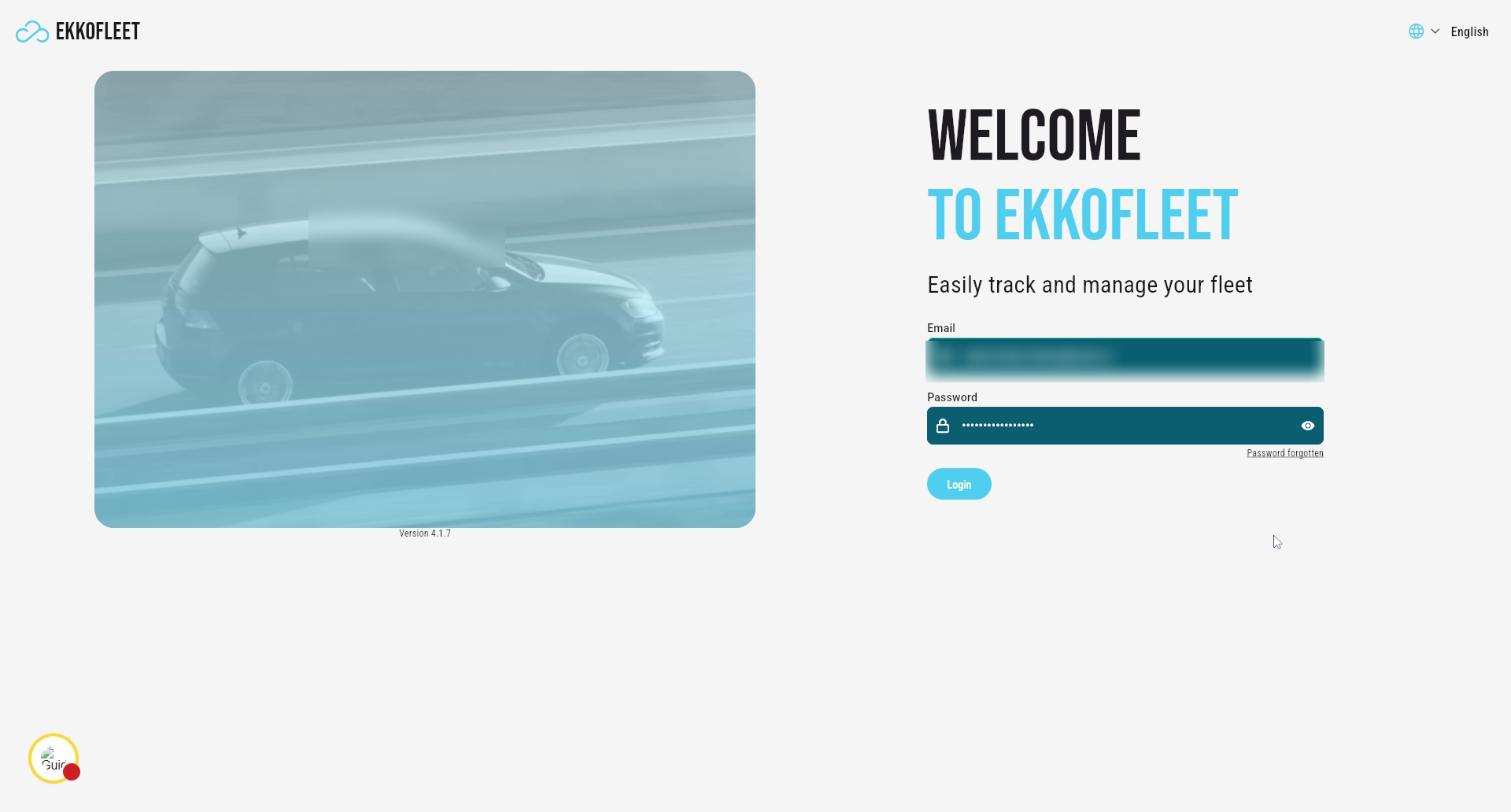
Log In and Navigate to Onboarding
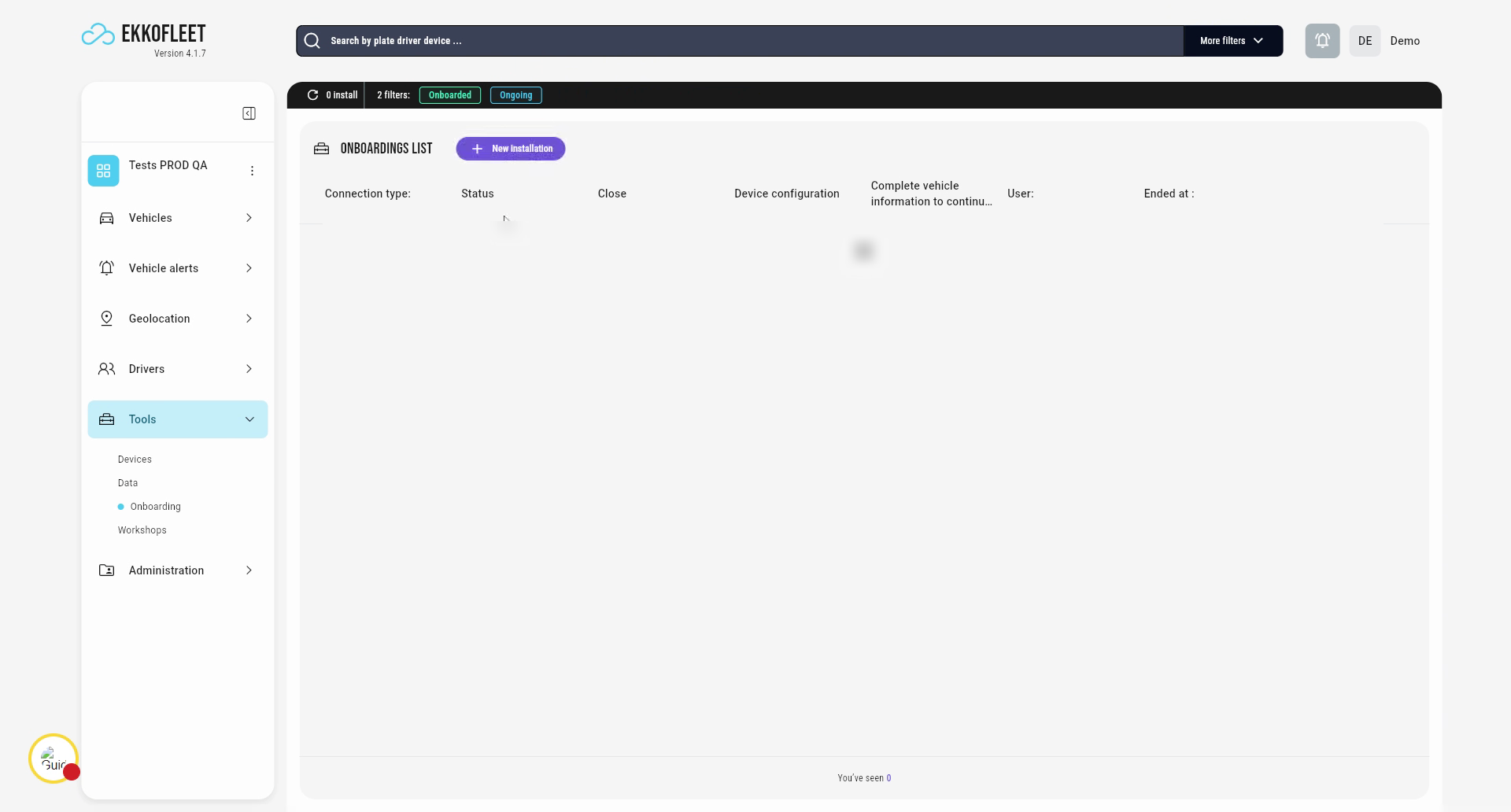
First, you need to log in to the platform. Then, to create a new onboarding, you need to go to Tools and Onboarding.
03
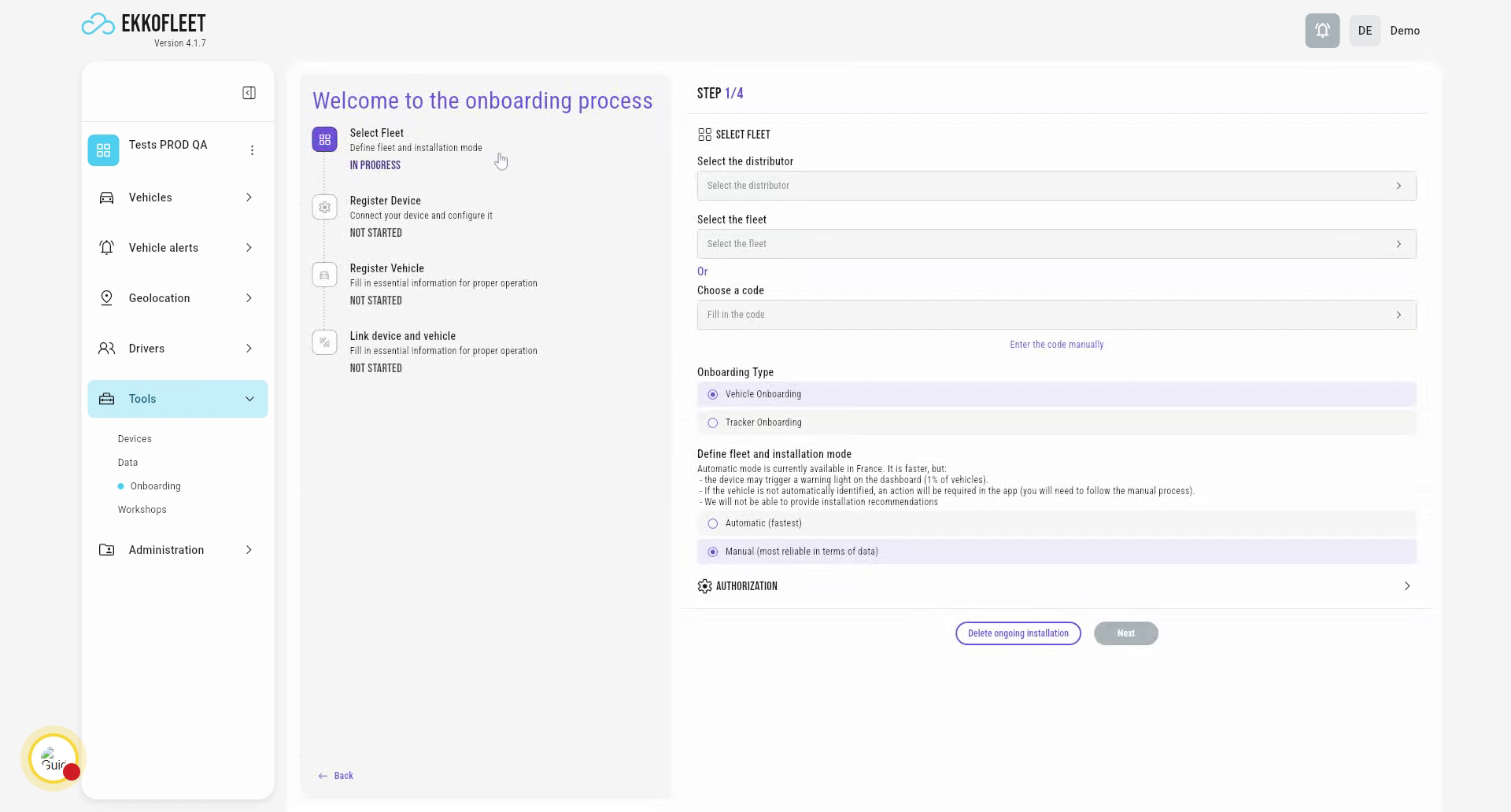
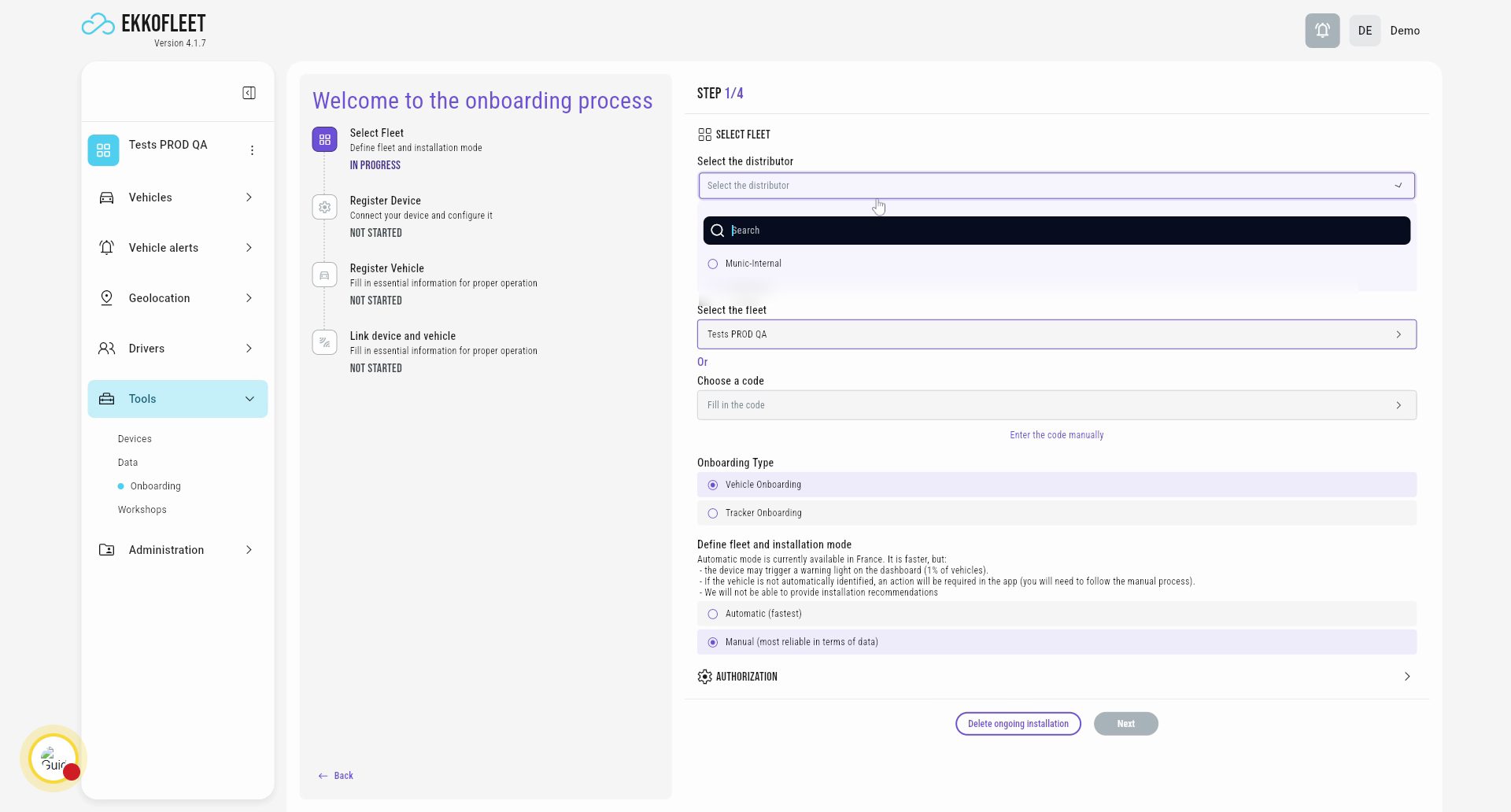
Select New Installation and Distributor (1)
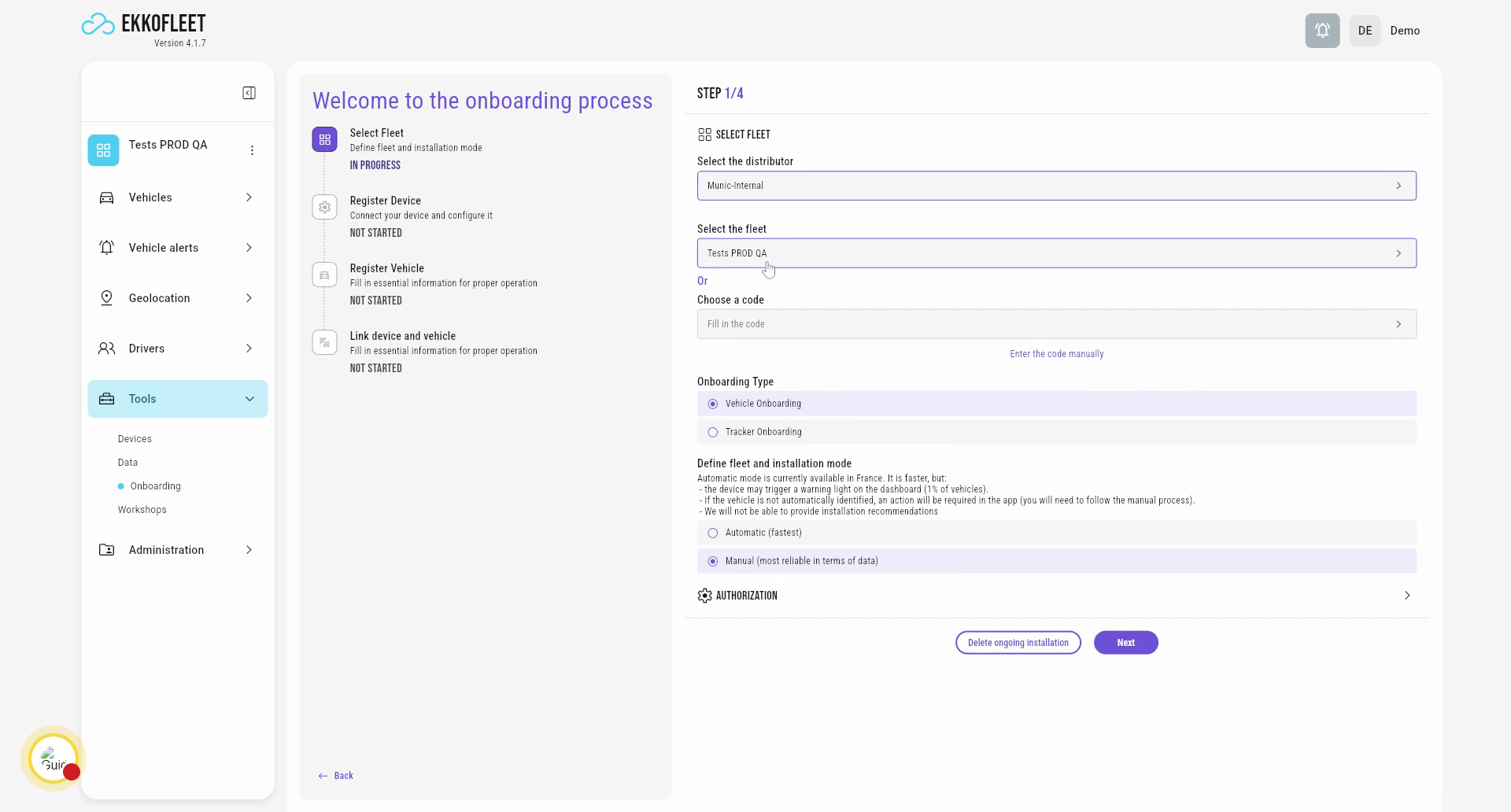
Then you will need to select New Installation. Select a distributor if you have different ones. In this case, I will use Munic Internal. And then select the fleet. Here, test QA.
04
Select New Installation and Distributor (2)
Then you will need to select New Installation.
05
Select New Installation and Distributor (2)
Select a distributor if you have different ones.
06
Select New Installation and Distributor (2)
In this case, I will use Munic Internal. And then select the fleet. Here, test QA.
07
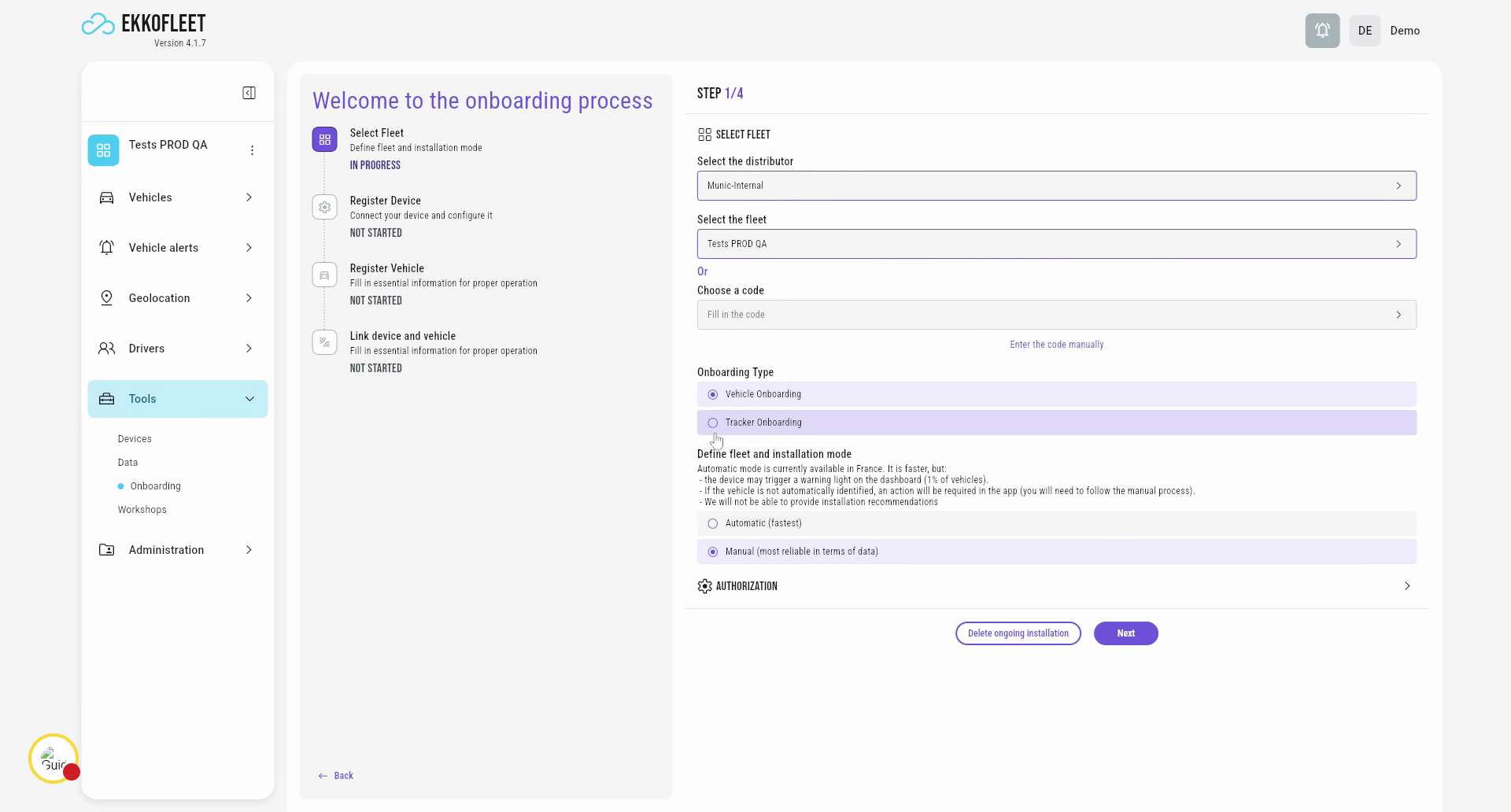
Choose Vehicle Onboarding and Manual Mode
And it will be a vehicle onboarding, so you choose this option, and manual, because I will not do an automatic decoding from the vehicle. You will then click on Start.
08
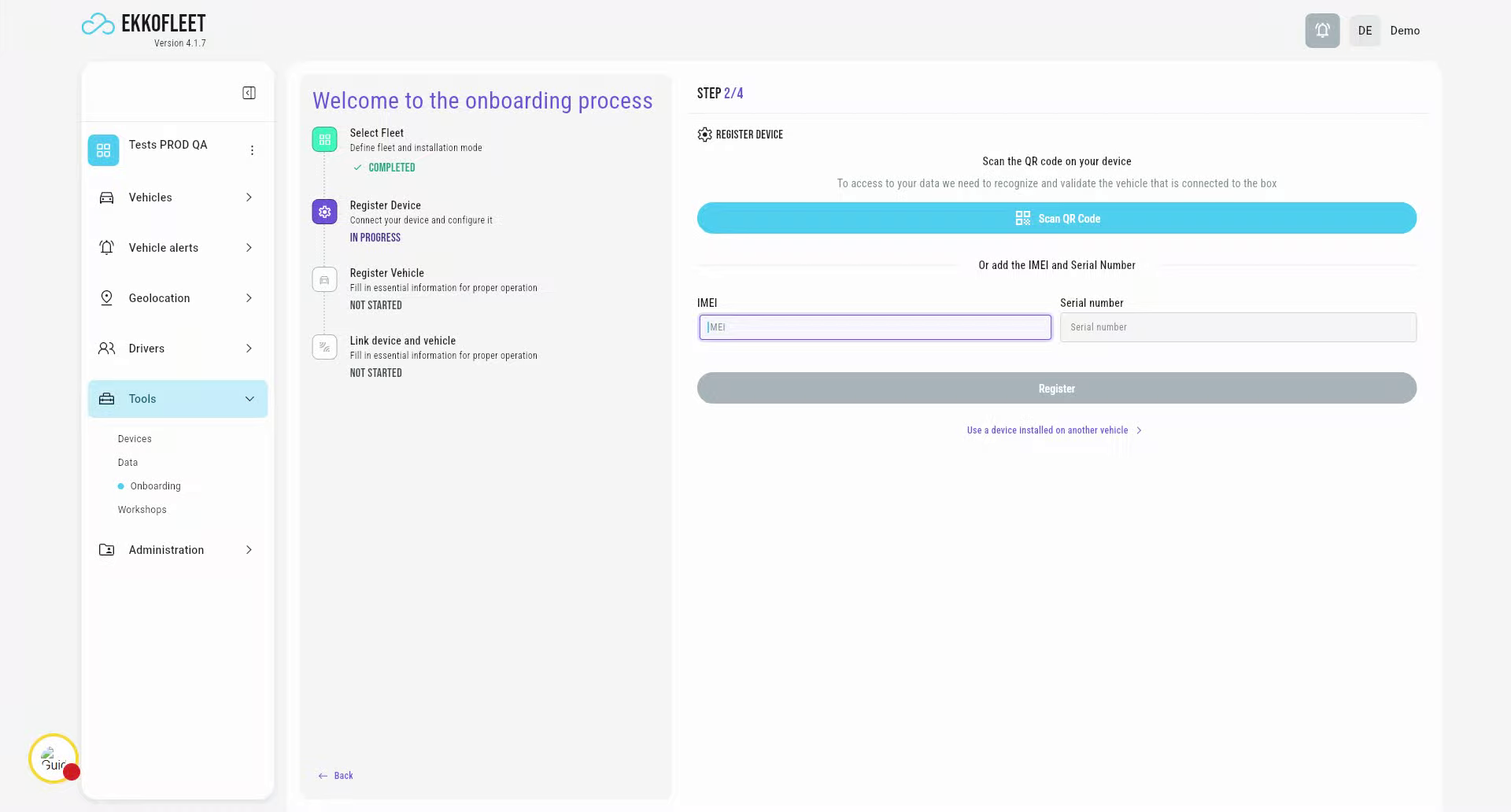
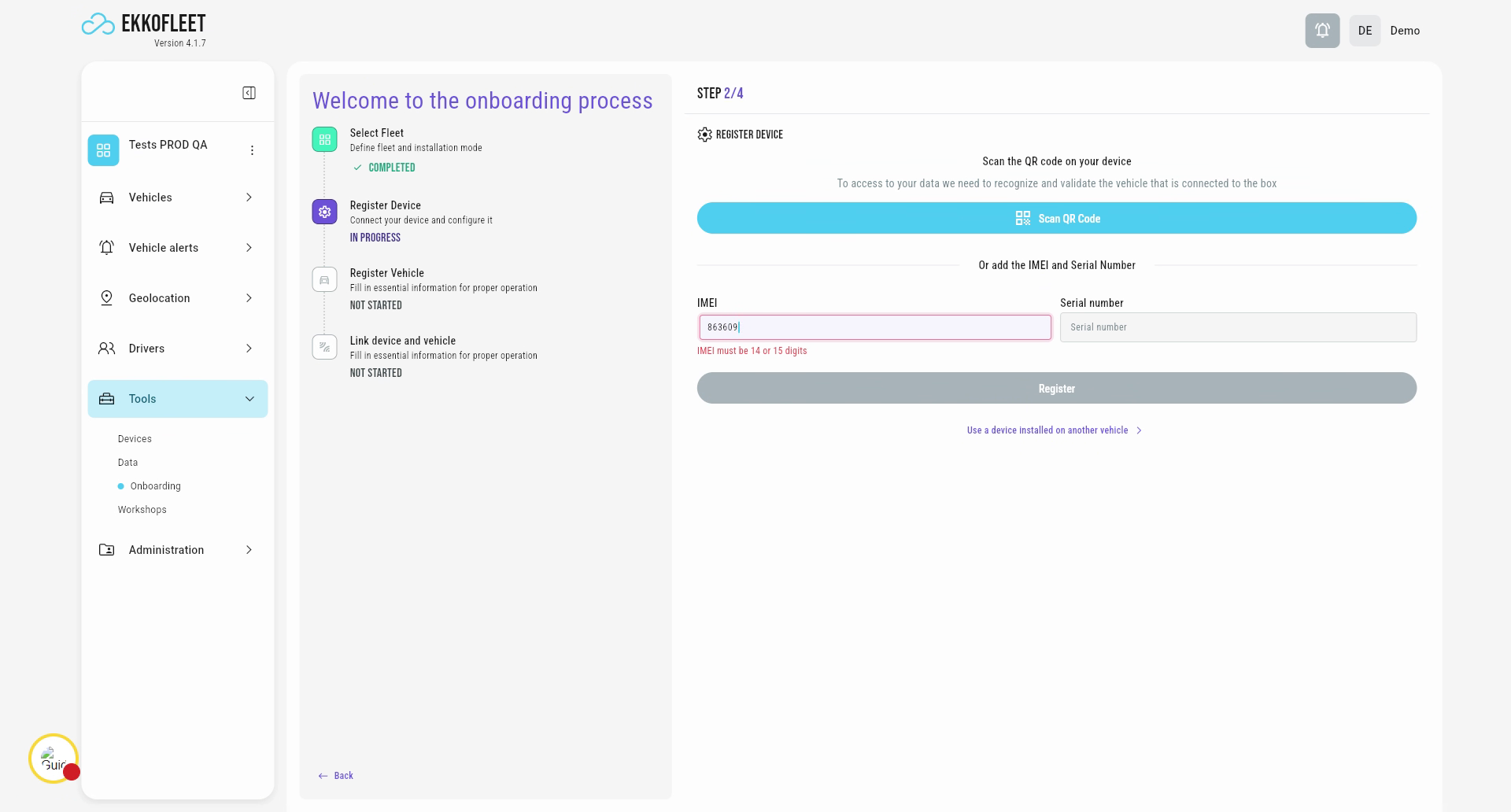
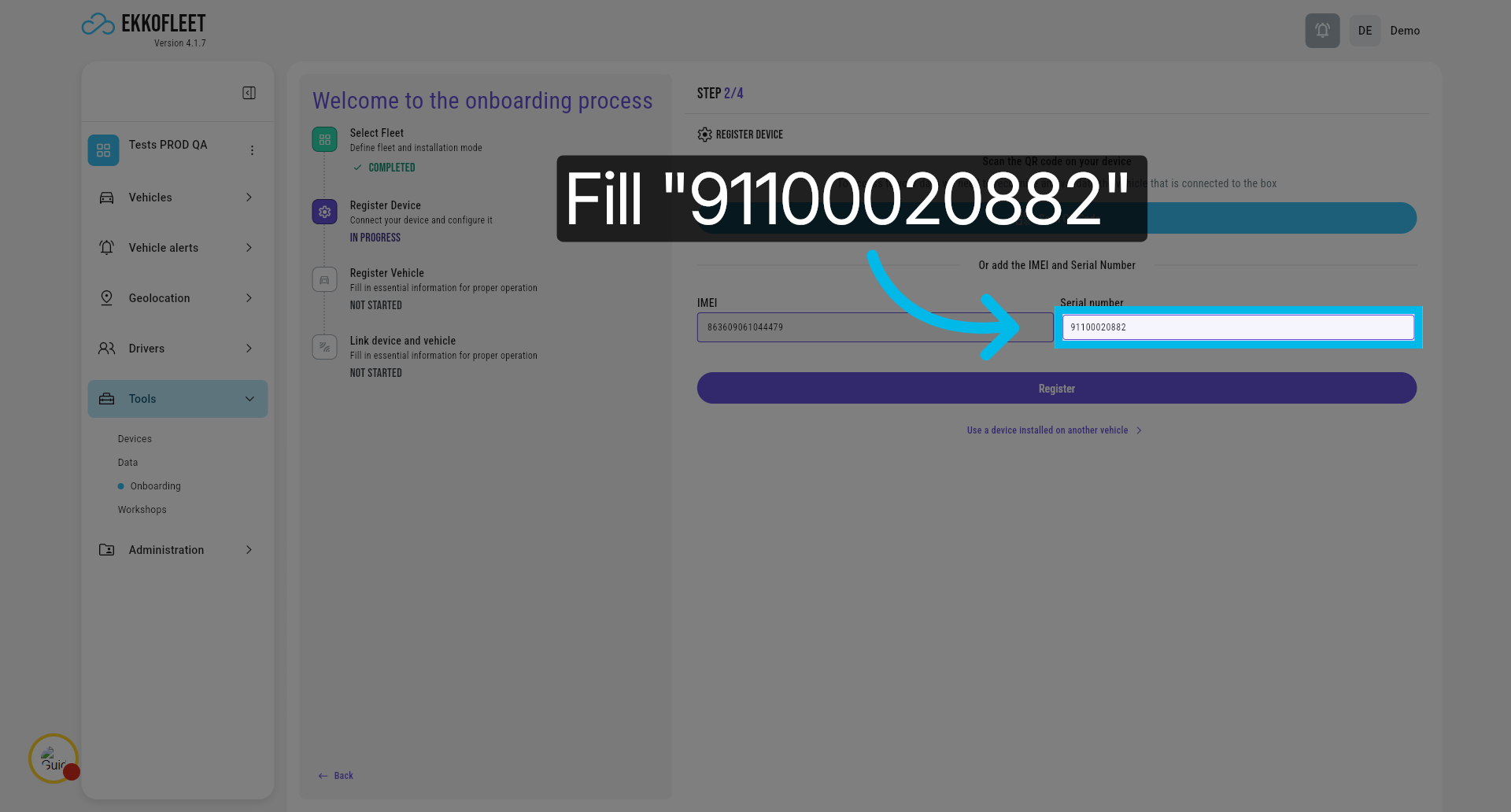
Enter Device IMEI and Serial Number
You need to enter the device IMEI and Serial number.
09
Enter Device IMEI Number
Enter the device IMEI number to identify the hardware being onboarded.
10
Enter Device Serial Number
Enter the device's serial number and then press "Register" to go to the next step
11
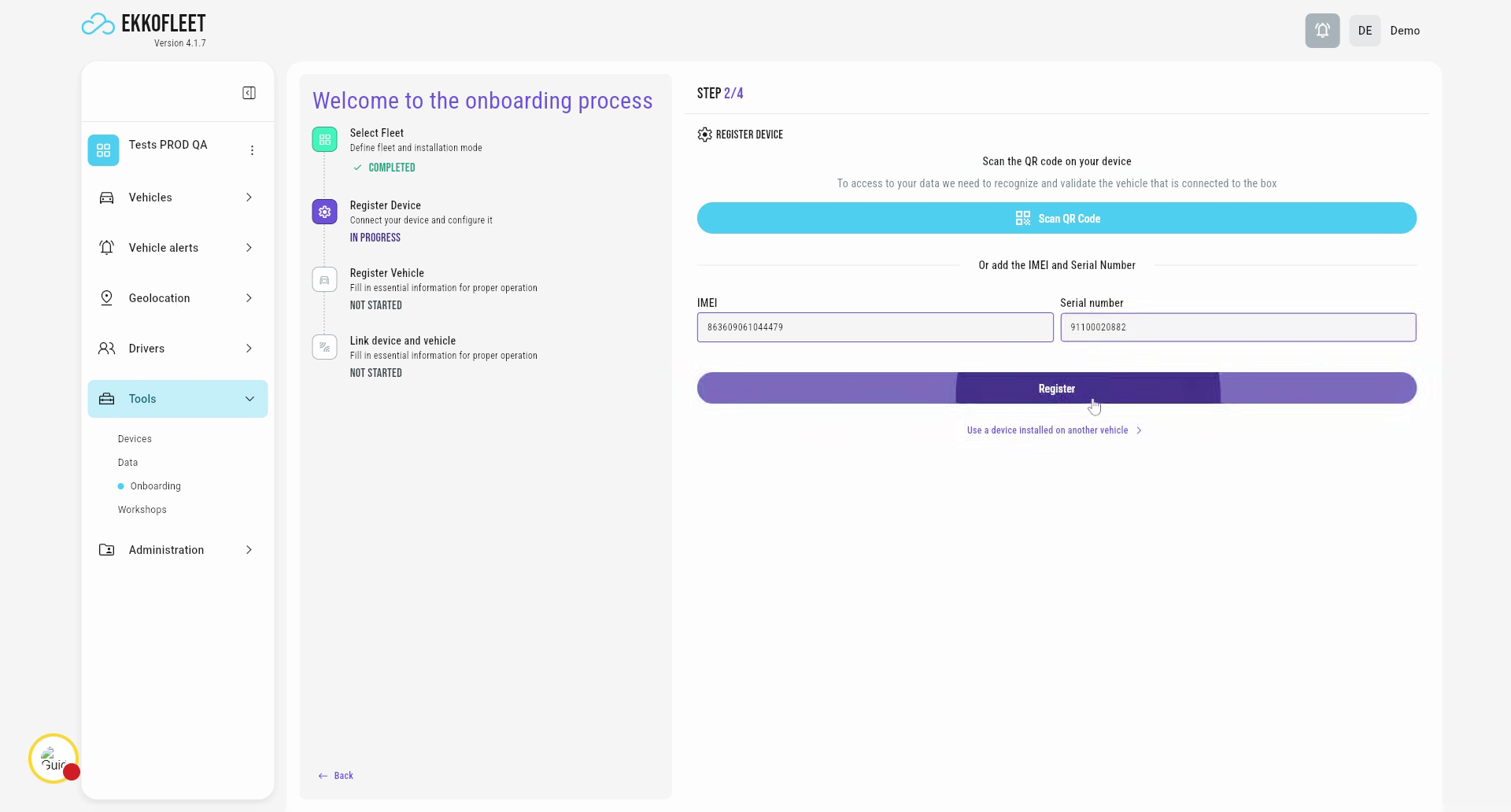
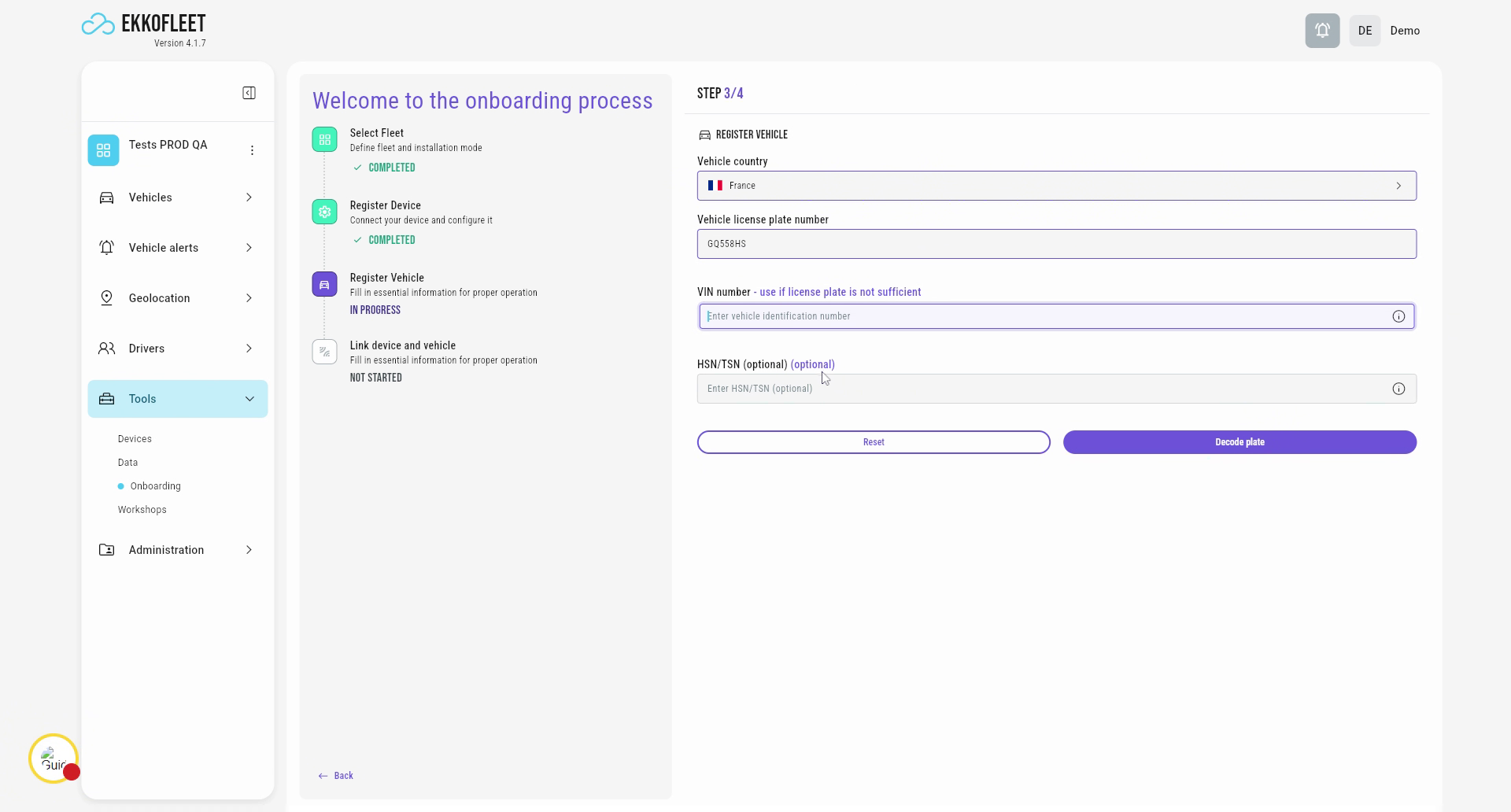
Select Country and Enter Plate Number
Registry. Then you select the country in which the vehicle was registered, in this case, France, and type the plate number.
12
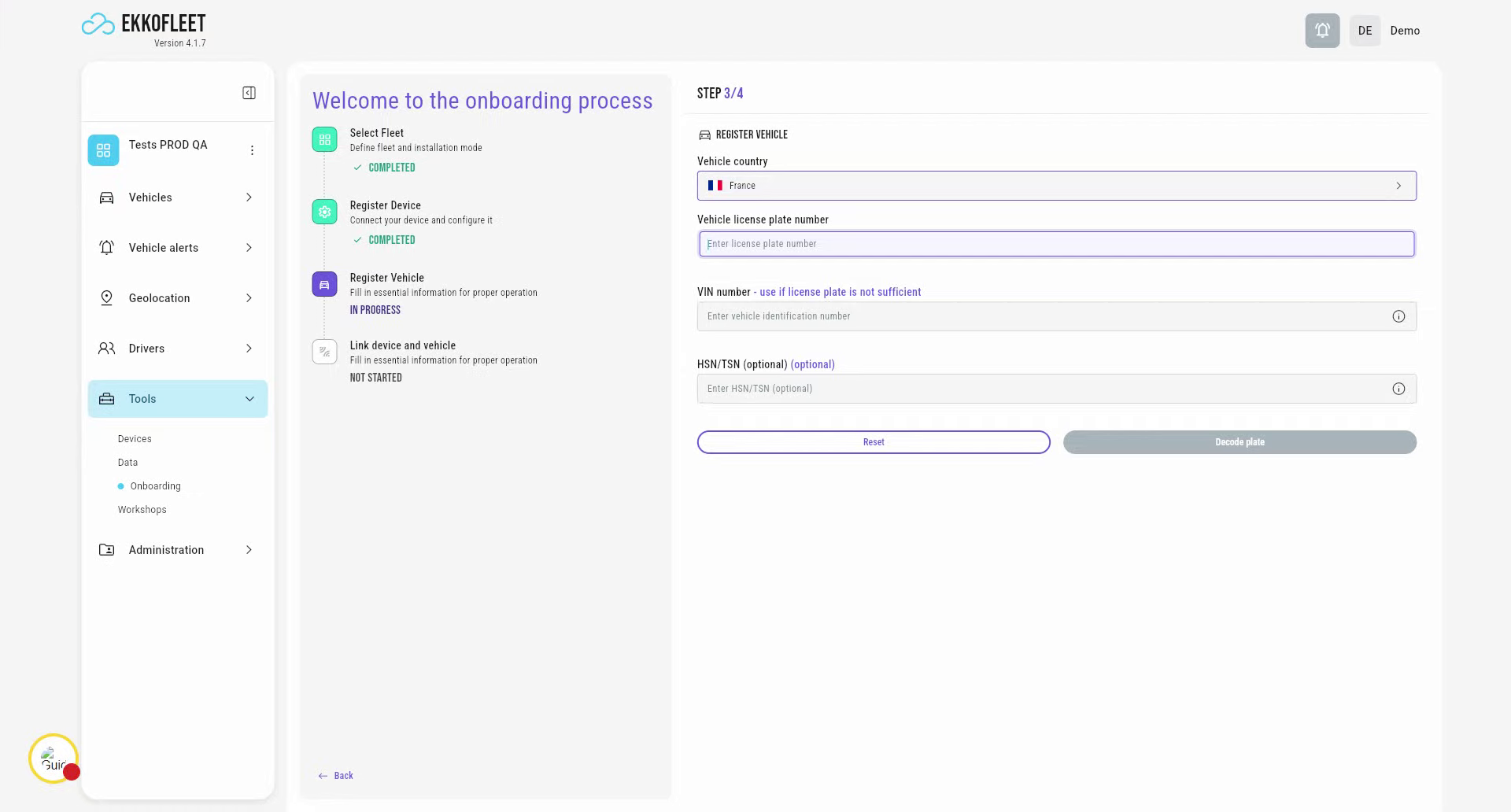
Enter Vehicle Plate Number
Enter the vehicle's plate number to assist with identification and registration.
13
Provide Vehicle VIN for Decoding
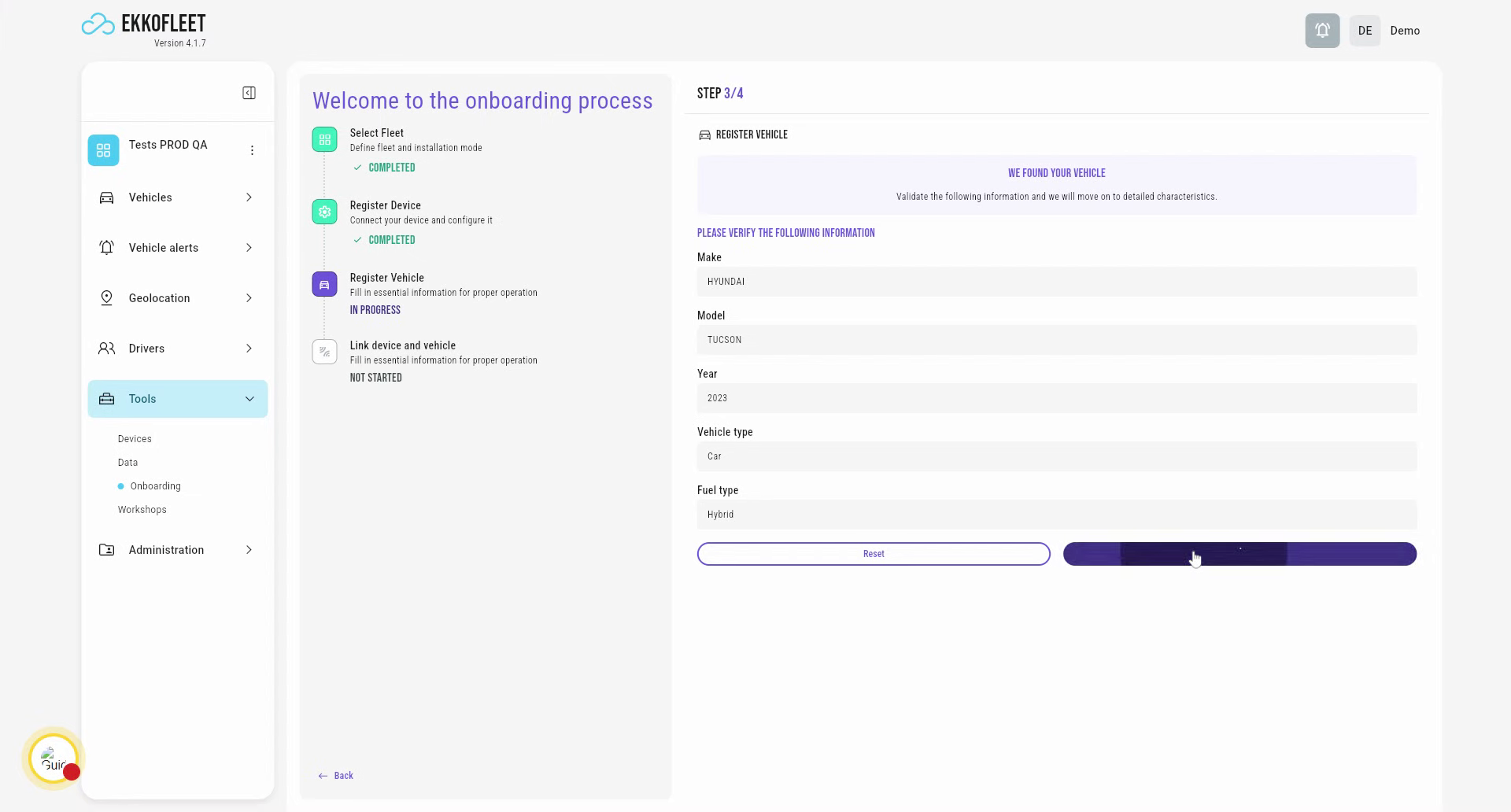
You will also need the vehicle VIN if you're not in France as the other countries are not activated or available (contact your account manager for further information). Once the vehicle is decoded, the make, model, year, type of vehicle, and fuel type will be filled in.
14
Validate Entered Vehicle Information
You validate.
15
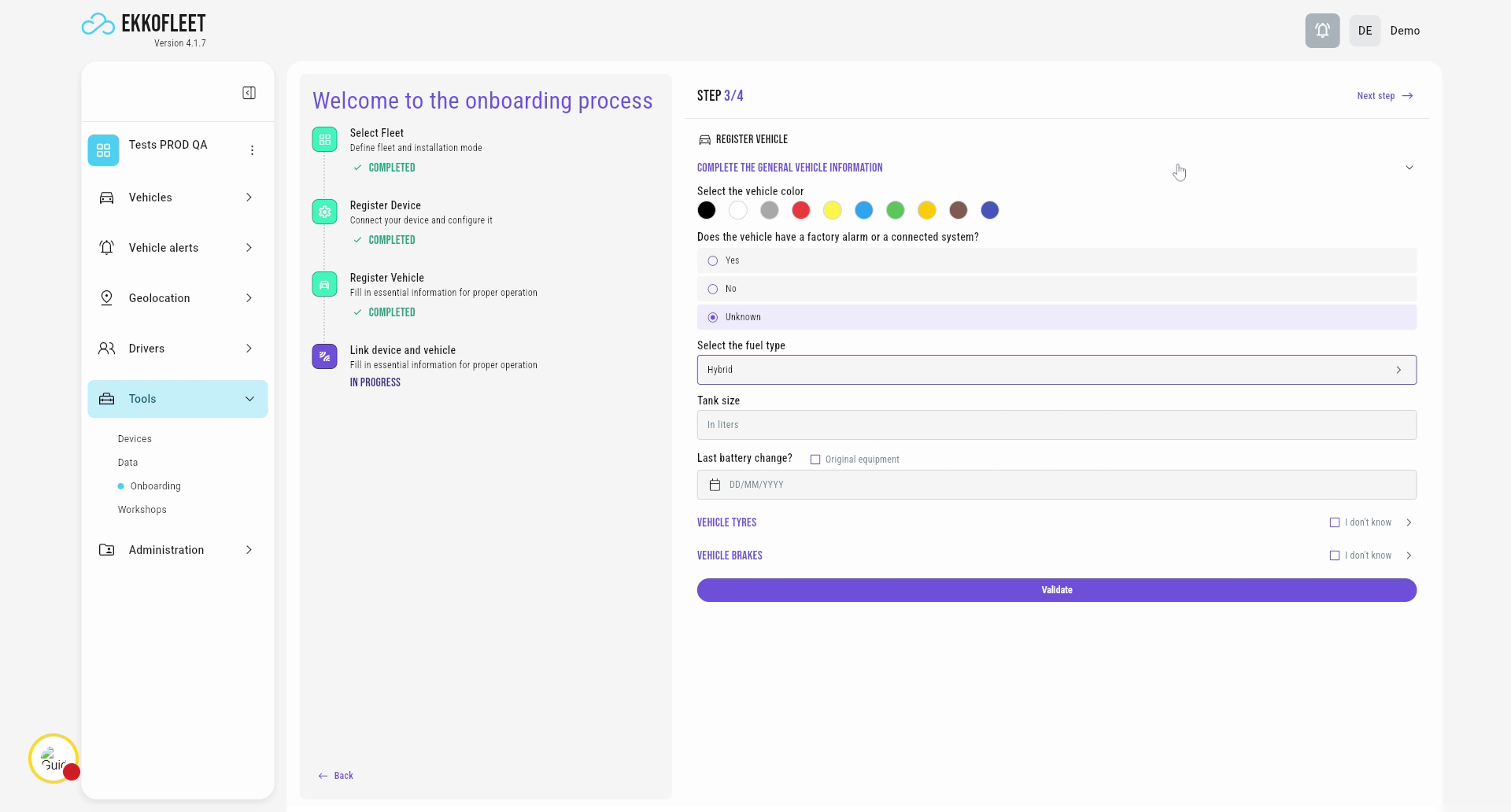
Select Vehicle Color and Alarm Options
You can select the color of the vehicle, indicate if there is a factory alarm or a connected system on the vehicle. Of course, if you're not aware, you can click on "Unknown". Do not forget to check if the fuel type that has been decoded is correct.
16
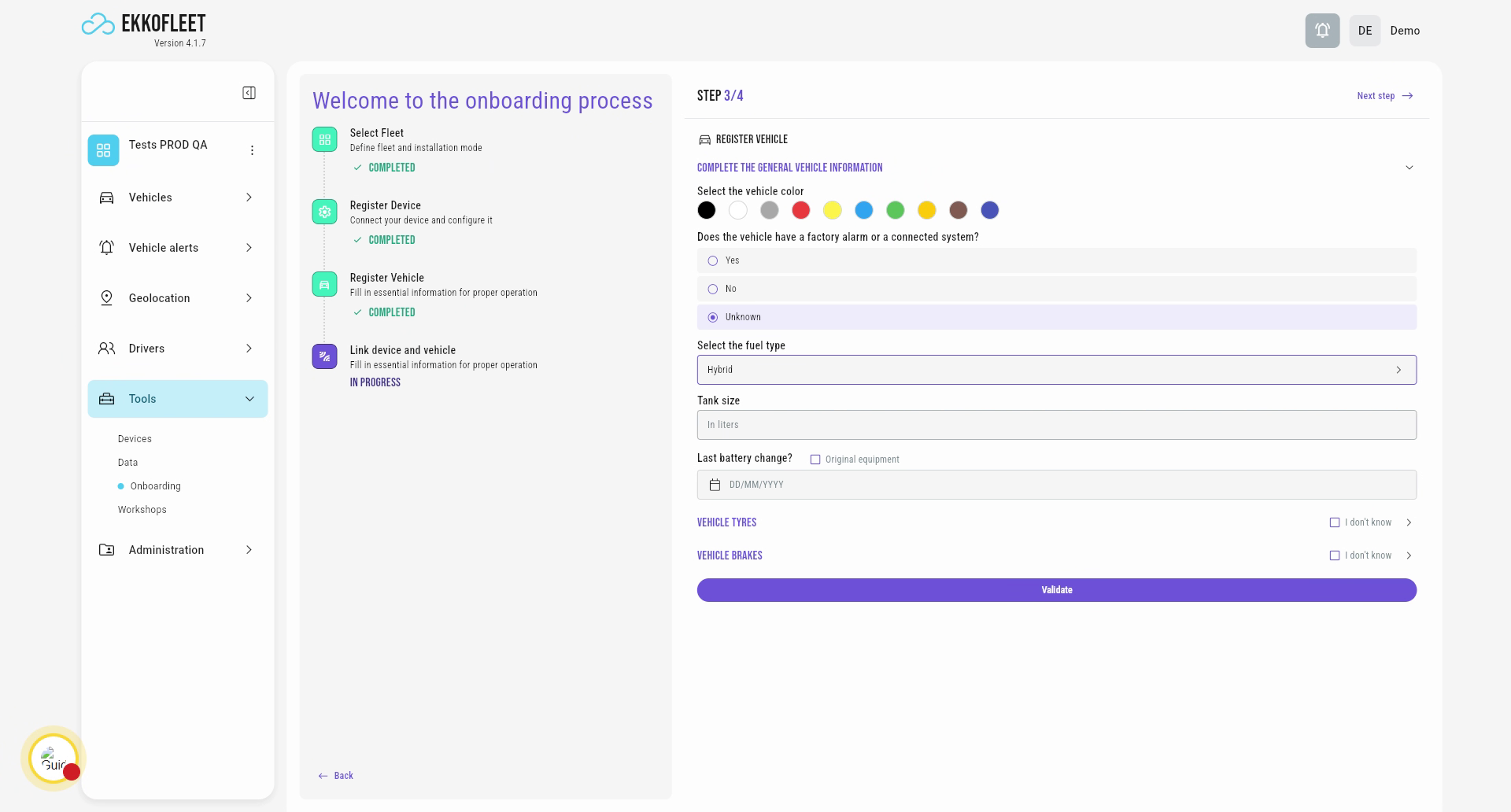
Enter Tank Size and Maintenance Details
Tank size can be filled in, otherwise it will be entered automatically. And you can enter the last battery change, vehicle tire self or vehicle brakes.
17
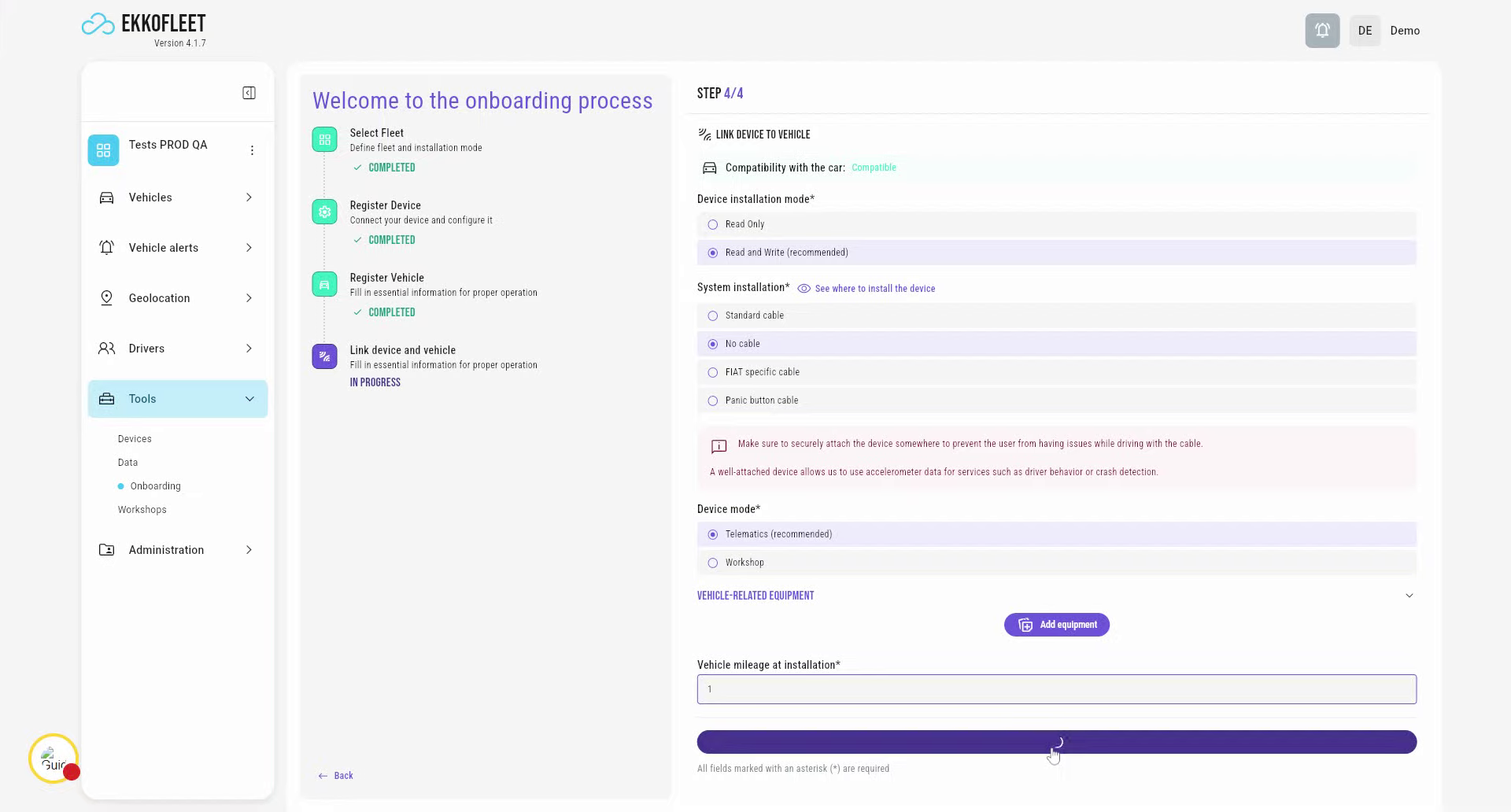
Configure Device Installation Mode and Cable
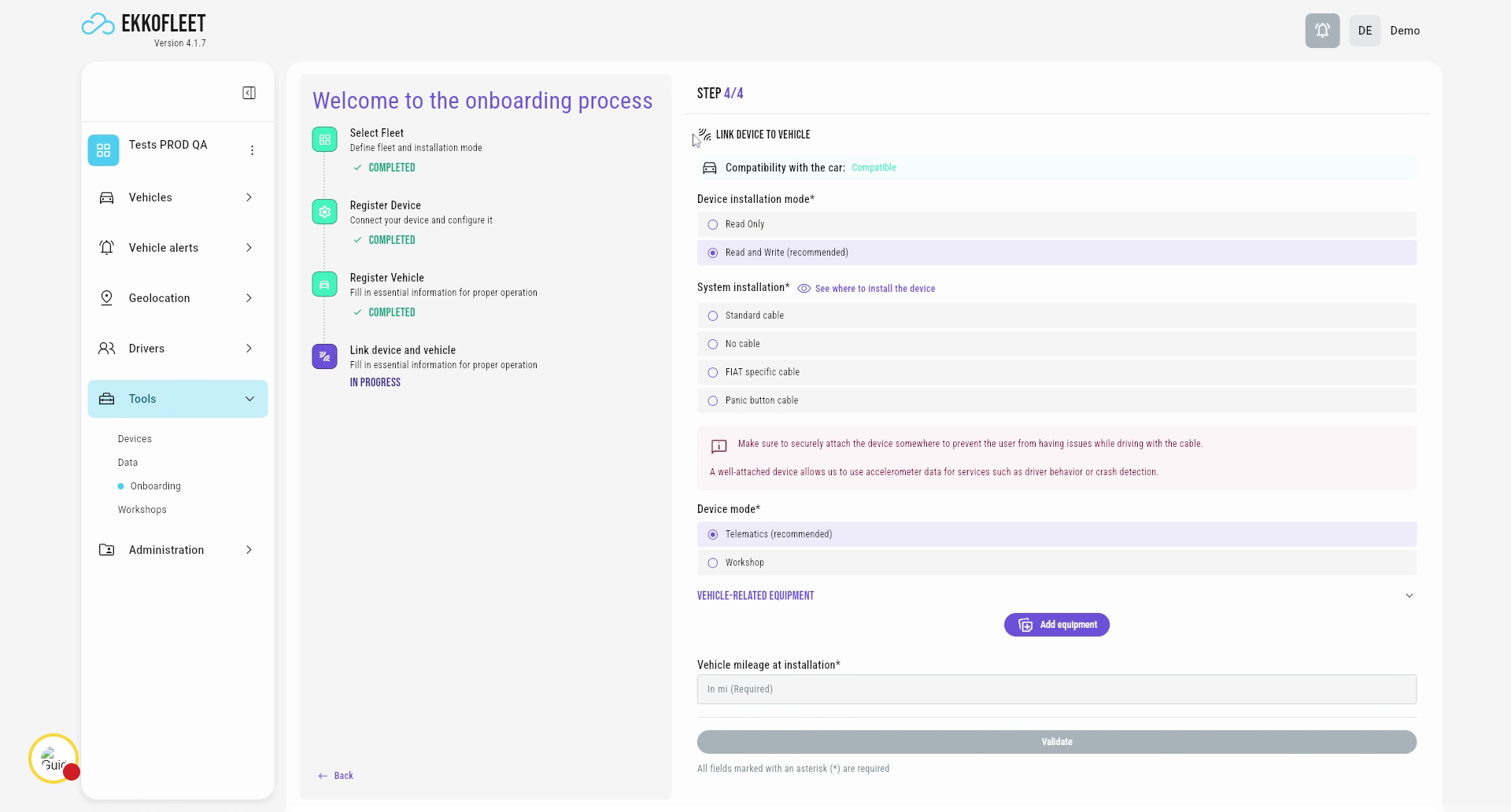
Regarding the link to the device, you need to enter the device installation mode, in this case read-write. It allows you to have vehicle data. System installation, you need to indicate if a cable was used during the install.
18
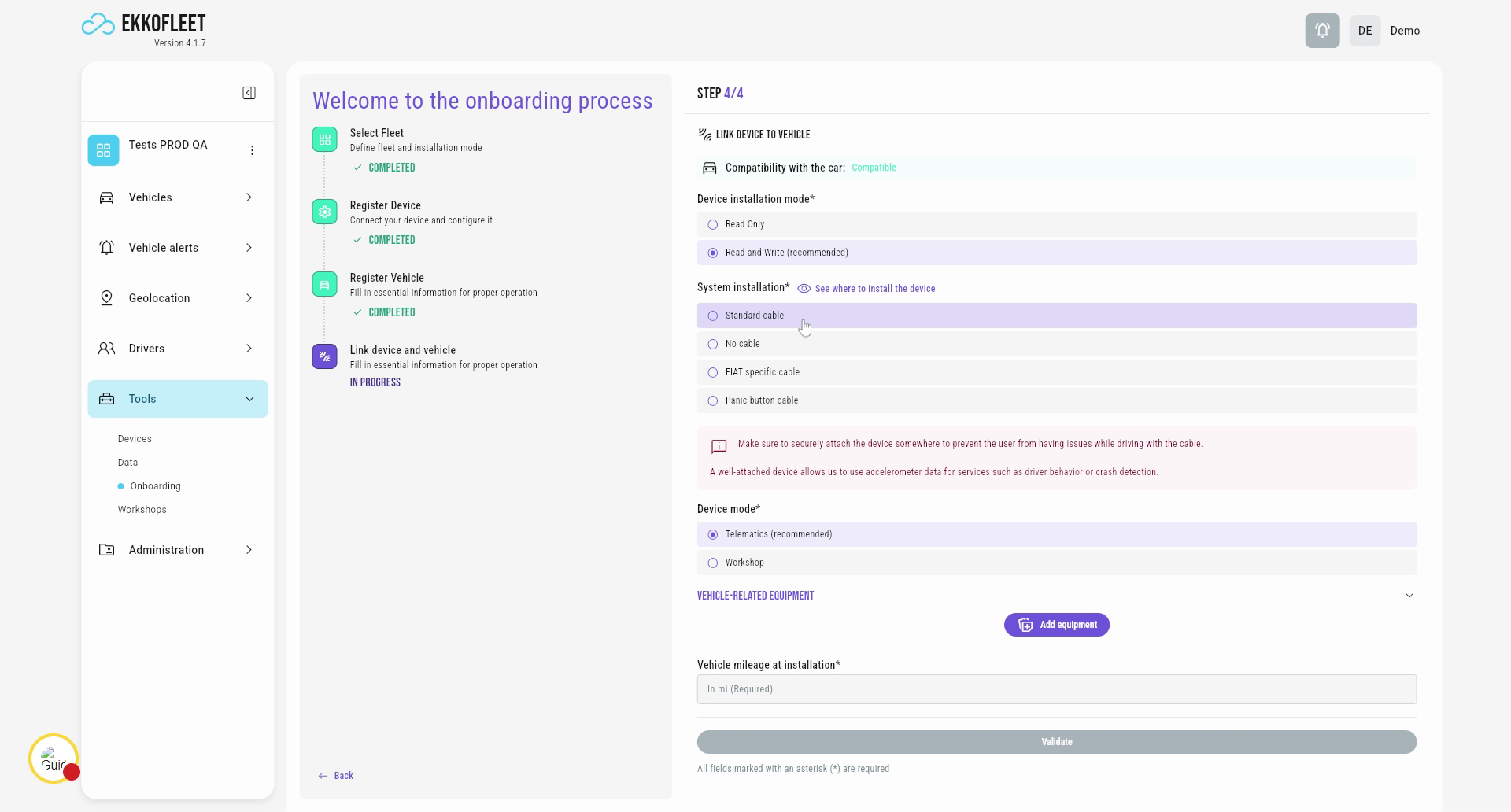
Specify Cable Type for Installation
Either standard or no cable. FIAT specific cable is only useful when you have a 4MUX device. Panic cable is in option, contact us if you're interested.
19
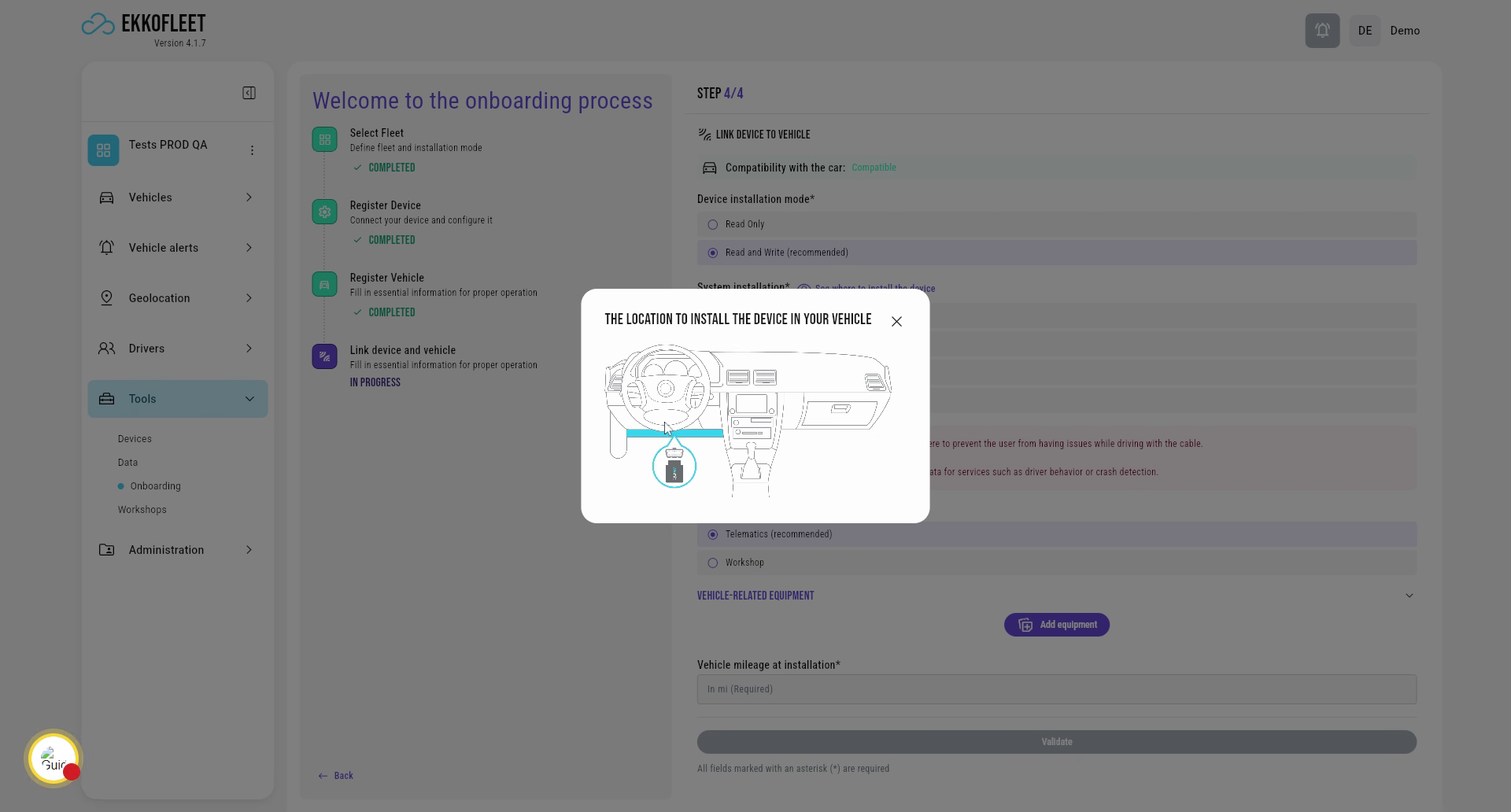
View Device Installation Location
See the location to install the device in your vehicle by clicking on the button.
20
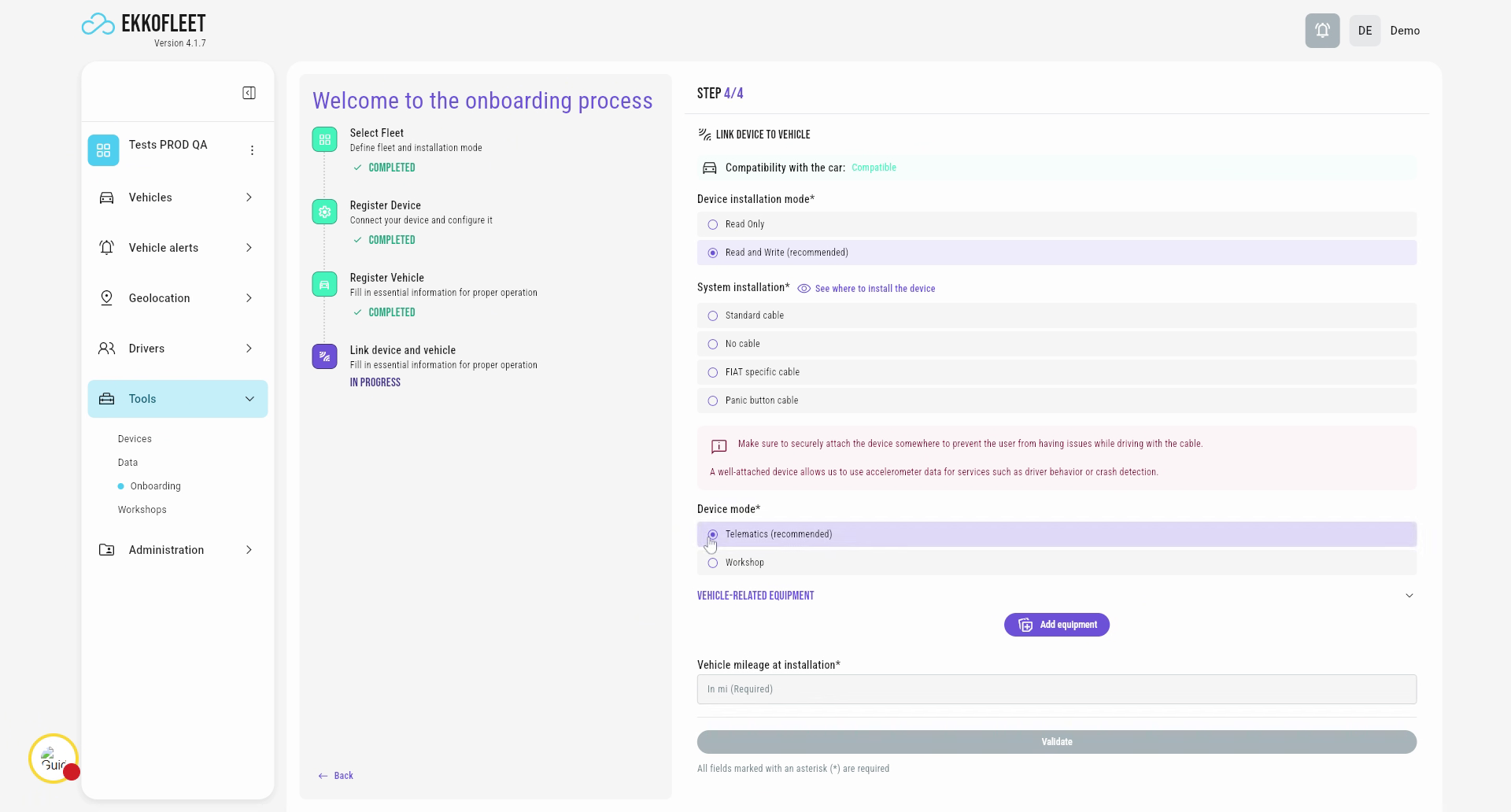
Select Device Mode and Enter Mileage
Then you select the device mode. In this case, it is Telematics. Workshop means that you can perform a scan as you are in a garage. This is an option. Please contact your Sales representative if you want to know more about this.
And finally you need to indicate the vehicle mileage at installation.
21
Validate Onboarding Information
You validate. the vehicle is now successfully onboarded.
22
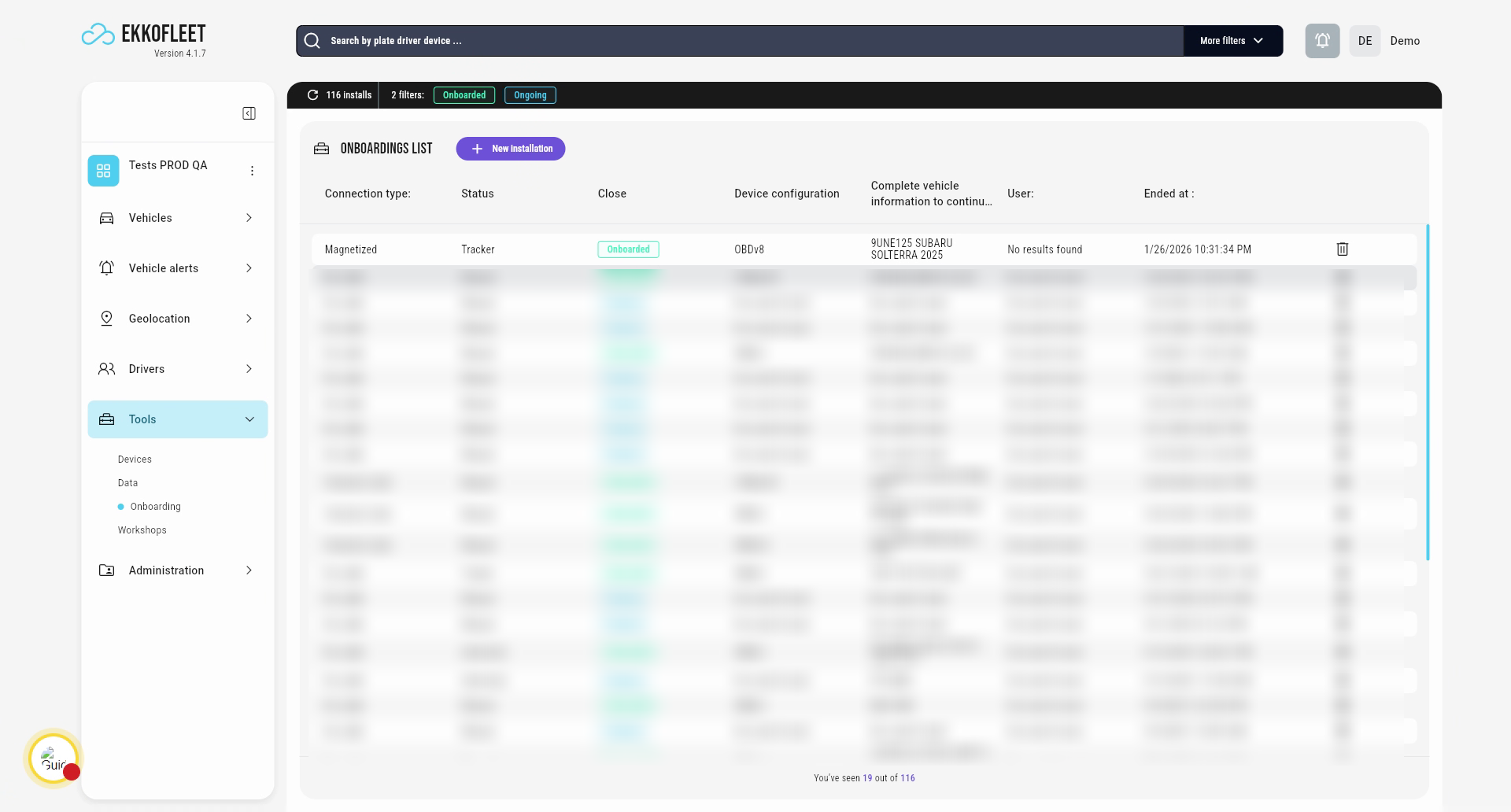
View Vehicle in Onboarded List
You can now see the vehicle in your onboarded list
23
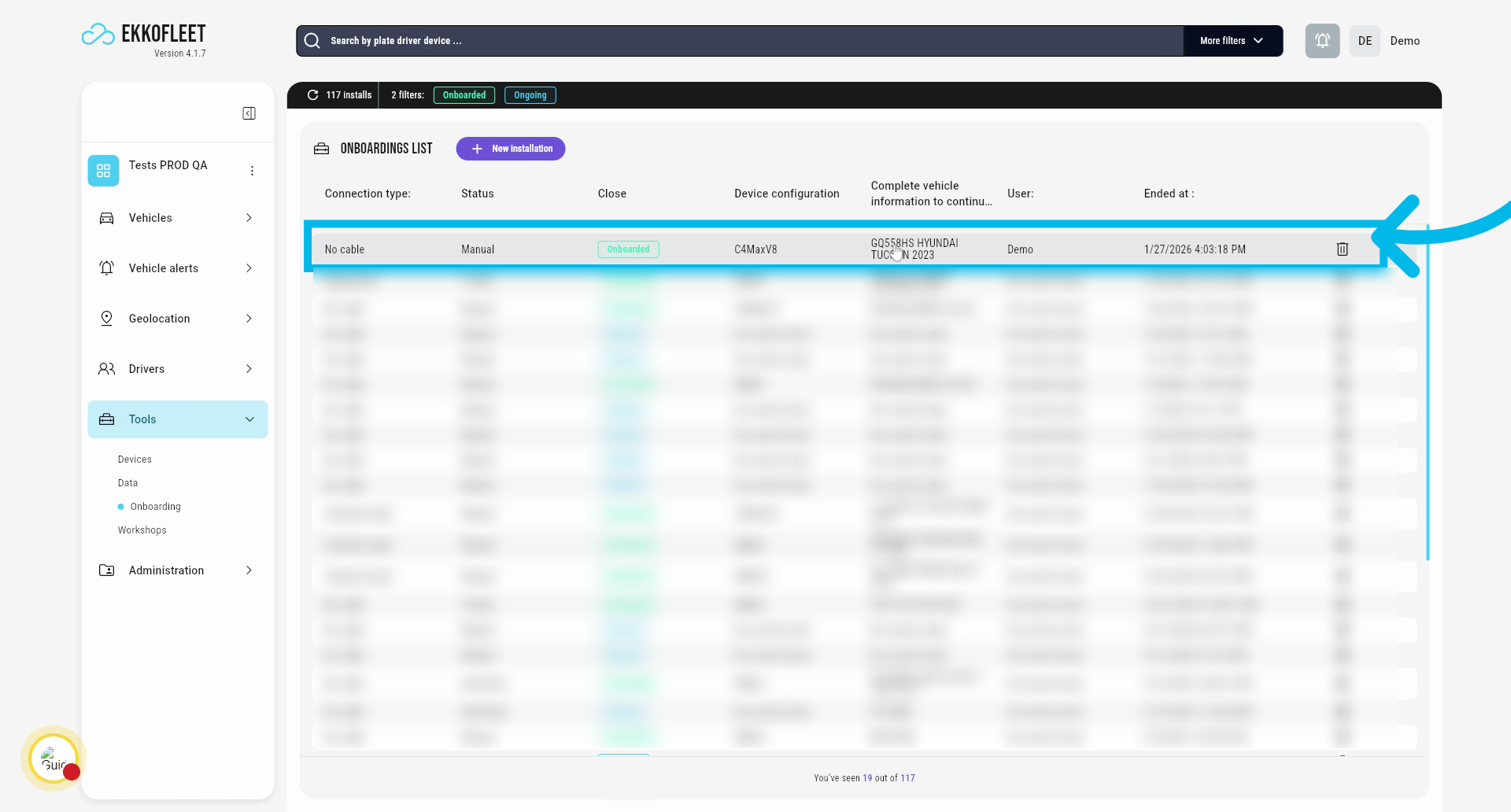
Confirm Vehicle Onboarding Completion
You can see now the vehicle being onboarded in your current list.
This article has guided you through the complete process of connecting and onboarding a vehicle in the Munic platform. For more information, refer to related articles on device management and fleet configuration.